


Printer App: Print & Scan PDF
4.357.00 Reviews
App Specs
- Version
- 1.1.5
- Updated On
- License
- Free
- Downloads
- 1,000,000+
- Developer
- FirstOrder.Apps
- Categories
- Productivity
- Platform
- Android
Screenshots
 Analysis by AppCompare
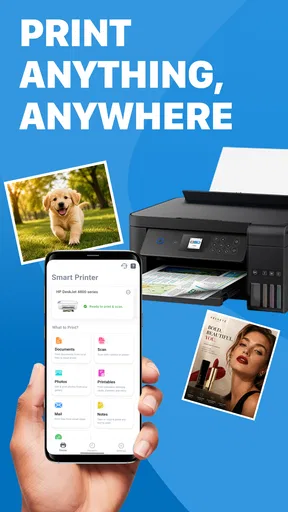
I tested Printer App: Print & Scan PDF as a practical productivity tool rather than treating it like a simple print button. Its purpose is easy to understand: help you locate a printer, send files or photos to it, scan paperwork into PDF, and make basic edits before the final handoff. That combination makes sense for people who regularly move between digital documents and paper, especially when the printer is not the device they use every day.
What I like about the concept is that it follows the way a real task happens. I may start with a photo in my gallery, a document on my phone, or a sheet of paper on a desk. The useful part is having one place to prepare that item, turn it into a printable file when necessary, and send it onward. In my experience, this is more convenient than jumping between a gallery app, a scanner utility, a PDF editor, and a manufacturer-specific printing tool.
It is a free Android productivity app from FirstOrder.Apps, with optional purchases ranging from around nine dollars to roughly fifty dollars per item. The app is rated for Everyone, and its current release is version 1.1.2. Those details make it approachable for a household, a student, or a small home office, although the purchase structure is worth checking carefully before relying on any paid editing workflow.
From a loose document to a finished print
When I have a document that needs to move from my phone onto paper, I try to think through the whole handoff rather than rushing straight to print. I’ll cover how choosing the right source and checking the final page can make that everyday task smoother, then look at what changes when several people share the same printer.
Starting with the item you actually have
A realistic test begins with a common situation: I receive a form as a file, take a picture of a receipt, or find a photo that needs to be printed. The first decision is not about paper size or printer settings; it is about the source. If the material is already digital, I can work from the phone. If it is physical, the scan-to-PDF path is the more useful starting point.
This distinction matters because a phone gallery is not organized around printing. Photos may contain distracting backgrounds, documents may be rotated, and a file intended for a screen may not look right on paper. A dedicated print-and-scan app gives the task a clearer center. I can think about the desired result first, then prepare the source instead of sending the first available copy directly to the printer.
The app is particularly suitable for occasional printing at home. I would recommend it to someone who prints school forms, travel documents, labels, household records, or selected photos but does not want to learn a separate printer brand application. It also has a sensible role when several people share one printer and need a straightforward way to move content from their own phones.
Worth Reading Before You Choose

EA SPORTS FC Mobile 26 Is a Bigger Football Game, but It Takes Time

Flipboard Shows What News Apps Must Do Beyond the Feed

Switching to Android Auto Means Rethinking Your Driving Routine

Google Calendar Makes a Crowded Week Easier to Manage

Ludo King Makes the Most of the Minutes Between Plans

Baby Panda World Brings Quick Play to Modern Phones, but Its Game Library Feels Busy
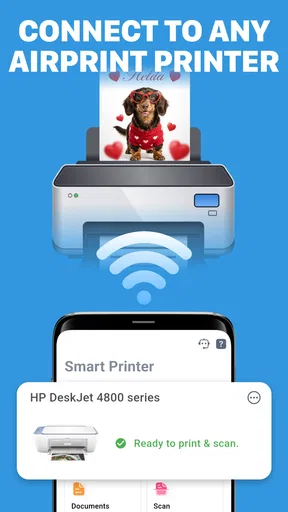
Finding the printer before preparing everything
The printer-discovery stage is an important handoff. The phone has the content, while the printer is the destination, and the two need to agree before the rest of the process feels worthwhile. I prefer checking that connection early rather than spending time editing a document only to discover that the intended printer is unavailable.
This is one of the app’s practical strengths: it treats finding the printer as part of the workflow instead of assuming that the destination is already ready. For a home user, that can reduce the small but annoying uncertainty of wondering whether the phone is sending to the correct device. If more than one printer is visible, I would slow down and verify the selected destination before confirming a job, particularly when one printer produces color pages and another is meant for everyday black-and-white documents.
The trade-off is that printer discovery is never entirely controlled by the app. The phone and printer still need to be reachable in a way the app can use, and the printer itself must be powered and ready. A tool can make selection clearer, but it cannot fix an offline printer, an empty paper tray, or a device that is not available to the phone. This is why I see the app as a useful coordinator, not a replacement for the printer’s own hardware status.
Preparing a photo or file for paper
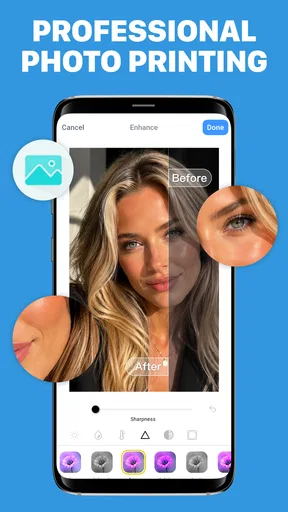
Once the source is selected, the editing stage becomes more important than it first appears. A photo that looks fine on a phone may include too much empty space when printed. A scanned page may need a crop or a cleaner orientation. The ability to edit within the same workflow is valuable because it avoids creating a temporary copy in another application and then trying to locate that copy again.
My advice is to edit for the paper outcome, not for how attractive the preview looks on the phone. Crop away unnecessary surroundings from photographed documents, keep important edges visible, and check that text is not being pushed too close to the boundary. When scanning a page, I would also inspect every corner before moving on. A clipped signature or missing line can be more serious than a slightly imperfect image.
The PDF route is especially useful for paperwork. Instead of printing separate image files or keeping several camera pictures in the gallery, I can bring the material together as a document. That creates a cleaner handoff to the printer and a more sensible digital copy for later reference. It is a small workflow improvement, but it is exactly the kind of improvement that saves time when a task repeats.
Scanning paper into a usable PDF
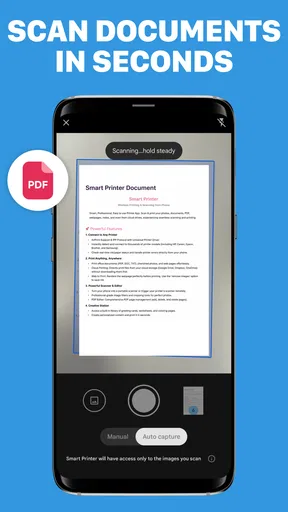
The scan function changes the app from a print utility into a two-way document tool. I can begin with a physical page, turn it into a PDF, make an adjustment, and then decide whether the result should stay digital or return to paper. That is useful for signed forms, notes, receipts, instructions, and documents that arrive physically but need to be shared or stored.
A good scanning habit is to prepare the surface first. I would place the page on a contrasting background, flatten folded corners, and capture it in even light. These are not glamorous steps, but they reduce the amount of correction needed later. The app can help with the digital preparation, yet the original capture still determines how readable the final PDF will be.
There is also a useful separation between scanning and printing. I do not have to print every scan immediately. I can first inspect the PDF, correct its framing, and only then make the decision about paper. That is a better approach for multi-page paperwork because it prevents wasting sheets on a document that still has a crooked page, a missing edge, or an unwanted blank image.
Managing the handoff between phone, PDF, and printer
The most realistic way to use this app is as a sequence of handoffs. The original may come from the camera, gallery, or a file location. It then becomes an edited item, possibly a PDF, and finally a print job. Each transition is a chance for confusion, so I find it helpful to pause at the preview stage and ask whether the next version still contains everything important.
For a multi-page document, I would process the pages in a consistent order and inspect the combined result before sending it. This is one of the non-obvious advantages of having scanning, editing, and printing close together: the app encourages me to think of the document as one outcome rather than a collection of unrelated images. If the pages are for a form or application, sequence matters just as much as readability.
Another practical tip is to keep the original source until the print is confirmed. Editing is useful, but a cropped image or revised PDF should not become the only copy of an important document before I know the result is correct. The app supports the working process, while ordinary file organization remains my responsibility.
Sending the job and checking the result
The final handoff is the moment when preparation becomes physical output. I would use the preview to verify the selected content, then check the destination printer once more before confirming. This is especially worthwhile in a shared environment, where a nearby printer can look like the right choice even when it is not.
After sending, I would inspect the first printed page before assuming the whole job is perfect. A successful transfer does not automatically guarantee a satisfying physical result. Paper orientation, margins, image proportions, and the printer’s own behavior can all affect what comes out. For a short document, this check is quick. For a long document, it can prevent a full stack of unusable pages.
This workflow also answers an important practical question: is the app useful without a printer beside me? Yes, the scan and PDF preparation parts can still be valuable on their own. However, its strongest reason to exist is the bridge between preparation and printing. If I only need to archive scans, a dedicated document scanner may be more focused. If I only print from one printer brand, the manufacturer’s app may offer deeper device controls.
Where the workflow becomes less comfortable
The app is not the right choice for every printing situation. People who need advanced printer administration, highly specialized paper handling, professional color management, or detailed device diagnostics may be better served by the printer maker’s software. A general-purpose app can simplify the basic path, but simplicity often means fewer controls for unusual jobs.
I would also be cautious about making it the only tool for high-volume office work. Occasional household printing is a different need from managing many users, repeat templates, or a large queue of business documents. The app’s appeal is the direct phone-to-paper workflow, not replacing a full desktop document system.
The optional purchase range is another point where I would pay attention. The app is free to start, but some users may encounter paid capabilities depending on the workflow they want. Before building a routine around advanced editing, I would review what is included without payment and what each purchase unlocks. That is not a reason to dismiss the app, but it does affect its value compared with a printer utility or a document app already included with a device.
How it compares with the usual alternatives
Compared with printing from a phone’s built-in sharing menu, this app offers a more deliberate path. The normal system route can be quicker for a single ready-to-print file, but it does not necessarily give the same sense of continuity when I need to scan, edit, and print. For a document that needs preparation, the dedicated workflow feels more appropriate.
Compared with a printer manufacturer’s application, the advantage is broader intent. I am not approaching the task only as maintenance for one brand of hardware; I am approaching it as a document journey. The disadvantage is that a brand-specific app may understand its own printer more deeply and expose controls that a general printer app does not emphasize.
Compared with a standalone PDF editor, this app is more convenient when the final destination is paper. A full PDF editor may be better for complex annotations, document management, or professional editing, while this tool keeps attention on the practical transition from source to printable result. I would choose the app for everyday forms and mixed photo-document tasks, and a specialist editor when the document itself is the main project.
Who will get the most from it
I think this is a good fit for students, families, renters, home-office users, and anyone who occasionally needs to turn phone content into paper. It is also useful for people who receive physical documents but want a cleaner digital archive before deciding what to print. The Everyone age rating makes it suitable for a broad household audience, provided users still handle personal documents thoughtfully.
The app has attracted over a million installs and holds a 4.3 average from around thirty thousand ratings, which suggests that its basic approach resonates with many Android users. I would not treat those figures as a guarantee that every printer setup will behave identically, but they do make the app feel established enough to consider for ordinary use rather than a purely experimental download.
I would skip it if my needs are limited to one tap from a desktop, if I require specialist print controls, or if I already have a reliable manufacturer app that handles scanning and editing exactly as I need. I would also avoid depending on any mobile workflow for irreplaceable documents without checking the preview and keeping the original source.
My verdict after following the complete workflow
What makes Printer App: Print & Scan PDF worthwhile is not any single action. The real benefit is the chain: locate the printer, bring in a file or photo, scan when the source is physical, edit for the page, create a cleaner PDF, and then complete the handoff to paper. That is a useful shape for everyday tasks because it matches what people actually need to do.
I found the app most convincing when a document had to cross several boundaries. A receipt became a scan, the scan became a PDF, the PDF was checked, and only then did it become a printout. That kind of sequence is less awkward than collecting separate tools for every stage. The main cautions are the limits of a general-purpose printer workflow and the need to understand which optional features require payment.
FirstOrder.Apps has made a practical productivity app for users who want less friction between their phone and a physical page. It is free to begin, supports Android 7.0 and later, and its current version is 1.1.2. If your printing needs are ordinary rather than specialized, I would recommend trying it and judging it by one complete task: scan or select a real document, inspect the PDF, send it to the correct printer, and check the page that comes out. The best reason to use it is the complete handoff from digital source to usable paper.
Pros
- Prints and scans PDFs directly from a mobile device.
- Supports wireless printing on compatible network printers.
- Useful document preview helps avoid printing the wrong pages.
- Scanning tools can turn paper documents into shareable PDF files.
- Convenient for quick home
- school
- or office printing tasks.
Cons
- Printer compatibility may vary between brands and individual models.
- Some advanced features may require a paid upgrade or subscription.
- Wireless printing depends on a stable Wi-Fi connection.
- Large scans and documents can take longer to process.
- The app may request permissions that some users find intrusive.
FAQs for Printer App: Print & Scan PDF
What is Printer App: Print & Scan PDF used for?
Printer App: Print & Scan PDF is designed to help you manage everyday printing and scanning tasks from a mobile device. After installing it, you can typically select documents, photos, or PDF files, connect to a compatible printer, and send them for printing. It may also let you scan paper documents using your phone’s camera and save the results as digital files, depending on the device and supported features.
Is Printer App: Print & Scan PDF compatible with every printer?
Compatibility is not universal, so you should check whether your printer model and connection method are supported before relying on the app. Most mobile printing applications work best with printers connected to the same Wi-Fi network, while some may support additional wireless technologies or specific printer brands. Printer availability, operating-system version, and network settings can all affect whether the app detects your device correctly.
Can I print documents and photos directly from my phone?
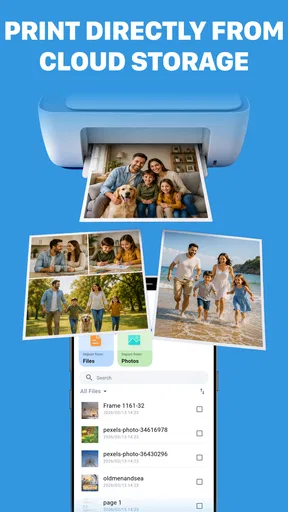
The app is intended to make mobile printing convenient, allowing users to choose files stored on their phone or in supported locations and prepare them for printing. Depending on the selected document, you may be able to adjust options such as paper size, orientation, color, number of copies, and page range. The exact controls can vary according to the printer model and the file format being printed.
Does the app scan documents into PDF files?
Printer App: Print & Scan PDF may use your phone’s camera to capture receipts, forms, notes, and other paper documents, then convert the images into digital files such as PDFs. Before scanning, make sure the page is well lit and positioned on a flat surface for better results. Features like cropping, rotation, enhancement, multi-page scanning, and text recognition may depend on the app version or subscription plan.
Is Printer App: Print & Scan PDF free to use?
The application may be available to download at no initial cost, but some printing, scanning, editing, or file-management tools can require in-app purchases or a subscription. You should review the pricing details shown in the Google Play Store or Apple App Store before starting a trial. Also check renewal terms carefully, since subscriptions may renew automatically unless canceled through your platform’s account settings.


